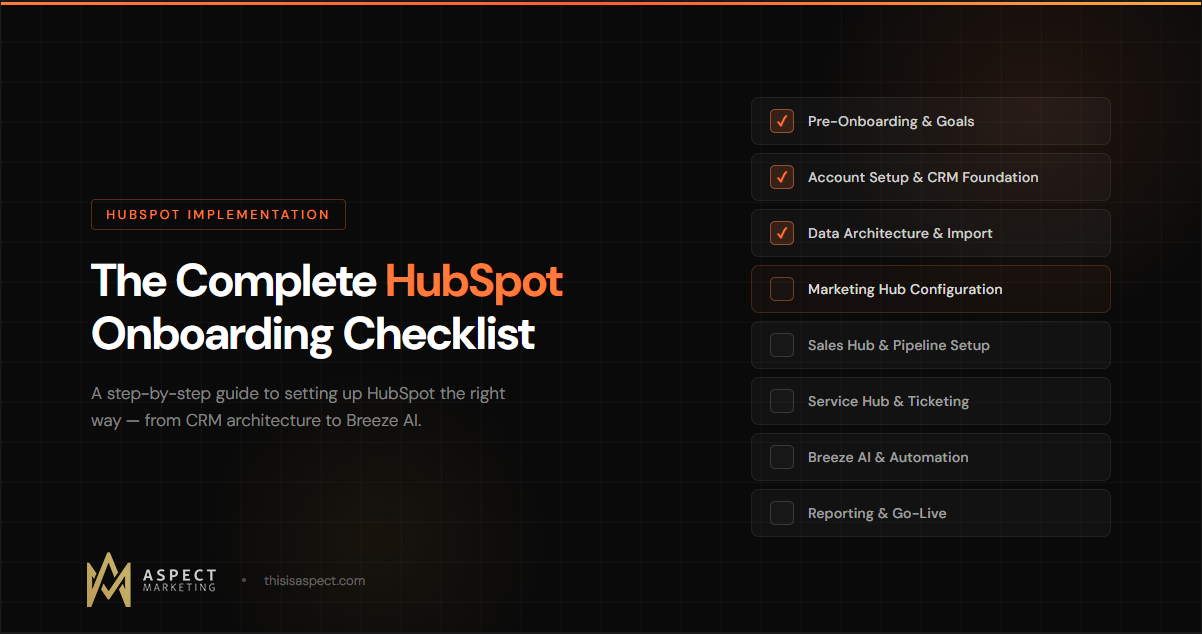

You just signed the HubSpot contract. Congrats — you made a great choice. Now comes the part nobody warns you about: the onboarding process can make or break your entire HubSpot experience.
Get it right, and you’ve got a clean, connected system that your team actually uses. Get it wrong, and six months from now you’re staring at a CRM full of duplicate contacts, broken automations, and dashboards nobody trusts.
We’ve onboarded dozens of companies onto HubSpot as a Gold-tier HubSpot Solutions Partner. The pattern is always the same — the teams that follow a structured checklist launch faster, adopt better, and see ROI sooner. The ones that wing it end up calling us to fix things later.
This is the checklist we wish every HubSpot customer had on day one.
Before You Touch HubSpot: The Pre-Onboarding Phase
Most onboarding guides skip straight to “create your account.” That’s a mistake. The most important work happens before you ever log in.
Define Your Goals and KPIs
Be specific about what success looks like. “Use HubSpot better” isn’t a goal. “Reduce lead response time from 48 hours to under 5 hours” is. “Increase marketing-sourced pipeline by 30% this quarter” is. Write down 3-5 measurable goals that your HubSpot implementation needs to support. Every configuration decision you make should tie back to one of these.
Map Your Customer Lifecycle
Before you build anything in HubSpot, document how a lead becomes a customer at your company today. Map every stage, every handoff, and every touchpoint. Where does a lead enter your world? What qualifies them? When does marketing hand off to sales? What happens after they close? This map becomes the blueprint for everything you build — your lifecycle stages, deal stages, automation triggers, and reporting.
Audit Your Current Data
If you’re migrating from another CRM, spreadsheet, or a collection of tools, take stock of what you’re bringing into HubSpot. How many contacts do you have? How clean is that data? Are there duplicates, missing fields, outdated records? Now is the time to clean up — not after you’ve imported 50,000 messy records into a brand new system.
Assemble Your Onboarding Team
HubSpot onboarding isn’t an IT project. You need representation from marketing, sales, and customer success (at minimum). Designate one person as the HubSpot admin who will own the platform long-term. If you’re working with a partner agency, this is when you align on timelines, responsibilities, and communication cadence.
Phase 1: Account Setup and CRM Foundation
This is the technical foundation. Get it right now, and everything else is easier.
Account Configuration
Start with the basics: add your company name, logo, time zone, currency, and default language. Connect your company domain so HubSpot can track website activity. Set your fiscal year if it doesn’t start in January — this matters for reporting. Enable GDPR features if you operate in the EU or handle data from EU citizens.
User Management and Permissions
Add your team members and assign them to the correct permission sets. HubSpot’s permissions can be granular, so think carefully about who needs access to what. Create teams that reflect your org structure — this powers reporting, lead rotation, and visibility rules later. Set up single sign-on (SSO) if your company uses it.
Connect Your Email and Calendar
Every user should connect their personal email (Gmail or Outlook) and calendar to HubSpot. This enables email tracking, meeting scheduling, and automatic activity logging. It’s one of the highest-impact, lowest-effort steps in the entire onboarding process. Set up a team-wide meetings link so prospects can book time directly from your website or emails.
Install the Tracking Code
Install the HubSpot tracking code on your website. If you’re on WordPress, the official HubSpot plugin handles this automatically. If you’re on another platform, add the code to your site header. Verify it’s working by checking the traffic analytics in HubSpot — you should see visits appearing within a few hours. This is what powers HubSpot’s contact intelligence, showing you which pages a lead visited before they filled out a form or booked a meeting.
Connect Your Domain for Email Sending
Authenticate your email sending domain by setting up DKIM, SPF, and DMARC records. This is critical for email deliverability — without it, your marketing emails are more likely to land in spam. HubSpot walks you through this in settings, but if DNS records make your eyes glaze over, this is a great task to hand to your IT team or agency partner.
Phase 2: CRM Data Architecture
This is where most onboarding projects go wrong. People rush to import data without thinking about structure first. Slow down here — it pays off enormously.
Define Your Properties
HubSpot comes with hundreds of default contact, company, and deal properties. Before you create new ones, review what already exists — you’ll probably find that HubSpot already has fields for most of what you need. For custom properties, establish a naming convention and stick to it. Use dropdown menus and predefined options wherever possible instead of free-text fields. Free text is the enemy of clean data.
Set Up Lifecycle Stages and Lead Statuses
HubSpot’s lifecycle stages (Subscriber, Lead, MQL, SQL, Opportunity, Customer, Evangelist) represent where a contact is in their journey with your company. Customize these to match the lifecycle map you created in pre-onboarding. Define clear, documented criteria for each stage. When exactly does a Lead become an MQL? What triggers the move to SQL? Get sales and marketing to agree on these definitions in writing. This single step prevents more cross-team friction than almost anything else you’ll do.
Build Your Deal Pipeline
Create deal stages that mirror your actual sales process — not what you wish your sales process was. Each stage should represent a meaningful milestone in the buyer’s journey, with clear entry and exit criteria. Add required properties at each stage so reps can’t advance a deal without entering key information (like budget, decision-maker, or expected close date). Set up win probability percentages for each stage to power your forecasting.
Import Your Data
With your properties and pipeline in place, you’re ready to import. Clean your data first: deduplicate, standardize formatting (especially phone numbers and addresses), and map your fields to HubSpot properties. Use HubSpot’s import tool to bring in contacts, companies, and deals. Run a test import with a small batch first to catch any mapping issues before you load everything. After import, run HubSpot’s built-in deduplication tool to catch any duplicates that slipped through.
Set Up Company and Contact Association Rules
Make sure contacts are properly associated with their companies, and that deals are connected to both. HubSpot can auto-associate contacts to companies based on email domain, but review the results — this automation isn’t perfect, especially with Gmail, Yahoo, or other personal email addresses.
Phase 3: Marketing Hub Setup
With your CRM foundation in place, it’s time to configure your marketing engine.
Forms and Lead Capture
Create your key forms — contact us, demo request, newsletter signup, content downloads. Keep forms short: every additional field reduces conversion rates. Use progressive profiling (available on Professional and above) to ask different questions each time a returning visitor fills out a form, gradually building a complete profile without creating friction.
Email Templates and Branding
Set up your email branding: logo, colors, fonts, footer with physical address (required by CAN-SPAM). Create reusable email templates for your most common use cases — newsletters, nurture sequences, event invitations, and follow-ups. Test your templates across email clients before you send to your full list.
Lists and Segmentation
Build your core audience segments using HubSpot’s active lists. Start with the essentials: contacts by lifecycle stage, contacts by persona or industry, engaged contacts (opened or clicked in the last 90 days), and unengaged contacts. Active lists update automatically as contacts meet or stop meeting the criteria, so they’re always current.
Landing Pages and CTAs
If you’re using HubSpot’s Content Hub, create landing page templates for your key conversion points. Even if your site is on WordPress, you can still use HubSpot’s CTAs (calls-to-action) to add smart, trackable buttons and banners to your existing pages.
Marketing Automation (Workflows)
Start simple. Your first workflows should cover the basics: a welcome email when someone subscribes, an internal notification when a high-value form is submitted, and a lead nurture sequence for new MQLs. Don’t try to automate everything on day one. Build your foundational workflows first, let them run for a few weeks, review the data, and then iterate.
Phase 4: Sales Hub Setup
Sales Hub is where deals get tracked, reps get organized, and revenue becomes predictable.
Sales Pipeline Configuration
You built your pipeline stages in Phase 2. Now configure the sales-specific features around it: set up deal automation (auto-create tasks when a deal moves to a new stage), configure deal-based workflows for follow-up reminders, and set up your forecasting categories if you’re on Professional or above.
Meeting Scheduling
Create meeting links for each rep and a round-robin link for team scheduling. Customize the booking page with your branding, set buffer times between meetings, and connect to a video conferencing tool (Zoom, Google Meet, or Microsoft Teams). Embed meeting links on your website’s contact page and in email signatures.
Email Sequences
Build sales sequences for your most common outreach scenarios: new lead follow-up, post-demo follow-up, re-engagement after going dark, and renewal outreach. Sequences automate the cadence while keeping the emails personal — reps can customize each message before it sends.
Sales Reporting and Dashboards
Create dashboards that give your sales team and leadership visibility into what matters: pipeline by stage, deals closing this month, rep activity (calls, emails, meetings), conversion rates between stages, and average deal cycle length. Start with HubSpot’s pre-built sales dashboard templates and customize from there.
Playbooks and Sales Enablement
If you’re on Sales Hub Professional or above, create playbooks that guide reps through common scenarios — discovery calls, objection handling, competitive positioning. Playbooks live inside the CRM so reps can reference them during calls without switching tools.
Phase 5: Service Hub Setup
If you’re using Service Hub, set it up to close the loop on the customer experience.
Ticketing Pipeline
Create a ticket pipeline that reflects your support process: new, in progress, waiting on customer, resolved. Set SLAs (service level agreements) for response and resolution times. Configure automatic ticket creation from form submissions, emails, or chat.
Knowledge Base
Build out a knowledge base with articles covering your most frequently asked questions. A good knowledge base reduces ticket volume and empowers customers to self-serve. It also powers HubSpot’s Breeze Customer Agent (more on that below).
Customer Feedback
Set up customer satisfaction surveys (CSAT), Net Promoter Score (NPS) surveys, or custom surveys to capture feedback at key moments — after a ticket is resolved, after onboarding, or at regular intervals.
Phase 6: Integrations and Connected Tools
HubSpot works best when it’s connected to your full tech stack.
Core Integrations
Connect the tools your team uses daily. Common integrations include your calling tool (like Aircall), project management platform (like Monday.com), accounting software, e-signature tool, and any industry-specific systems. HubSpot’s App Marketplace has hundreds of native integrations — check there first before building custom connections.
Data Sync and Operations Hub
If you’re on Operations Hub, set up data sync to keep HubSpot and your other tools in bi-directional sync. This is especially valuable if you use a separate tool for accounting, ERP, or customer support. Operations Hub also gives you programmable automation with custom-coded workflow actions — powerful for complex business logic that goes beyond standard workflow triggers.
Zapier or Middleware
For tools that don’t have a native HubSpot integration, use Zapier, Make, or n8n to bridge the gap. Common use cases include syncing HubSpot with Slack for real-time deal notifications, connecting to your billing system, or pushing form submissions to a project management tool.
Phase 7: Breeze AI and Automation (2026 Update)
This is the section most onboarding guides don’t cover yet — and it’s increasingly important.
Breeze Copilot
HubSpot’s AI assistant is built into the platform. Make sure your team knows it exists and how to use it. Breeze Copilot can help draft emails, summarize CRM records, research companies, and generate content — all from within HubSpot. It’s not a replacement for strategy, but it’s a massive time-saver for day-to-day tasks.
Breeze Agents
If you’re on Professional or Enterprise, you have access to specialized AI agents. The Customer Agent handles front-line support conversations using your knowledge base. The Prospecting Agent researches leads and drafts personalized outreach. The Content Agent helps create blog posts, landing pages, and social content. These agents run on a credit-based system (introduced in 2026), so start with your highest-volume use case and expand from there. The Customer Agent, for example, is most effective when you have a well-built knowledge base — which is why getting Service Hub set up first matters.
Breeze Intelligence
Breeze Intelligence enriches your contact and company records with firmographic data, tracks buyer intent signals, and optimizes forms with progressive profiling. If data quality is one of your goals (and it should be), Breeze Intelligence can automate a significant portion of your data enrichment workflow.
Breeze Studio and Marketplace
As of early 2026, HubSpot’s Breeze Studio lets you customize AI agents and build custom assistants trained on your company’s specific knowledge. The Breeze Marketplace offers pre-built agents for common use cases. This is evolving fast — check back regularly for new capabilities.
Phase 8: Reporting, Dashboards, and Go-Live
You’ve built the machine. Now make sure you can measure it.
Create Your Core Dashboards
Build dashboards for each team: a marketing dashboard (traffic, leads, conversion rates, email performance), a sales dashboard (pipeline, activity, forecasting, win rates), and an executive dashboard (revenue attribution, customer acquisition cost, lifetime value). Use HubSpot’s custom report builder to create reports that tie directly back to the goals you set in pre-onboarding.
Set Up Attribution Reporting
If you’re on Marketing Hub Professional or above, configure multi-touch attribution reporting. This shows you which marketing activities are actually driving revenue — not just generating leads. Attribution is one of the most valuable features in HubSpot, but it only works if your data is clean and your lifecycle stages are properly configured (which is why we spent so much time on those earlier steps).
Train Your Team
Don’t just hand people login credentials and wish them luck. Run structured training sessions for each team: show marketers how to create and manage campaigns, show sales reps how to work their pipeline and log activities, and show service teams how to manage tickets and use the knowledge base. Record these sessions so new hires can reference them later. HubSpot Academy has excellent free certification courses — make completion of relevant certifications a team expectation.
Go Live and Iterate
Set a firm go-live date and hold to it. Perfection is the enemy of progress — your HubSpot instance will never be “done.” Launch with your core workflows, pipelines, and dashboards in place, then plan monthly reviews to identify what’s working, what’s not, and what to optimize next.
Common Onboarding Mistakes to Avoid
After dozens of implementations, we see the same mistakes over and over. Here are the ones that hurt the most.
Importing dirty data. If your data is messy before HubSpot, it’ll be messy inside HubSpot. Clean it first. Always.
Skipping lifecycle stage definitions. Without agreed-upon definitions, marketing and sales will never align on what counts as a qualified lead.
Over-automating too early. Start with simple, high-impact workflows. Complex automation built on an unproven process just breaks faster.
Ignoring user adoption. The best-configured HubSpot instance is worthless if your team doesn’t use it. Invest in training and make HubSpot the single source of truth — not an optional side tool.
Not connecting the tracking code. It sounds basic, but we’ve seen companies run HubSpot for months without proper tracking, losing all visibility into website behavior.
Treating onboarding as a one-time event. HubSpot is a living system. Plan for ongoing optimization, regular data hygiene, and quarterly strategy reviews.
The Bottom Line
HubSpot onboarding isn’t about checking boxes — it’s about building a system that your team will actually use to grow revenue. Every configuration decision should connect back to your business goals, your customer lifecycle, and your team’s daily workflows.
Whether you tackle onboarding internally or partner with an agency, the most important thing is to do it methodically. Rush the foundation, and you’ll spend twice as long fixing it later.
Aspect Marketing is a Gold-tier HubSpot Solutions Partner specializing in onboarding, implementation, and RevOps. If you’d rather have experts handle your HubSpot setup while you focus on running your business, let’s talk.