
Monday.com HubSpot Integration: How to Connect Project Management to Your CRM
The handoff from “closed deal” to “delivered project” is where a lot of B2B companies quietly lose time, context, and customer trust. Connecting Monday.com to HubSpot closes that gap. Here’s how to set it up so your sales and delivery teams finally work from the same information.
Disclosure: Aspect Marketing is a Monday.com partner. Some links in this post are partner links, and we may earn a commission if you sign up through them, at no extra cost to you.
There’s a specific moment in every B2B company where things tend to break: the handoff from sales to delivery.
A deal closes in HubSpot. Now someone has to spin up a project, gather all the details the sales rep collected, communicate the scope to the delivery team, and kick off the work. In most companies, this happens through some combination of spreadsheets, Slack messages, a hastily forwarded email, and a manually created project board. Details get lost. The delivery team starts work without full context. The client notices the seams. And the account manager has no visibility into project status when the customer calls asking for an update.
Connecting Monday.com to HubSpot fixes this. When your CRM and your project management platform talk to each other, a closed deal automatically becomes a project, populated with all the context the delivery team needs. Status updates flow back to the CRM so your commercial teams always know where things stand. The handoff stops being a manual scramble and becomes an automated, reliable process.
Here’s how to set it up the right way.
Why This Integration Matters
HubSpot is where your customer relationship lives: the deal history, the contact details, the notes from every sales conversation. Monday.com is where the work happens: the project boards, the task tracking, the delivery timelines.
When these two systems are disconnected, you get a predictable set of problems. Delivery teams start projects without the full picture of what was sold and promised. Sales and account management have no visibility into delivery progress, so they’re blindsided when a client mentions a delayed project. Information gets re-entered manually from one system to the other, wasting time and introducing errors. And nobody has a single, accurate view of the customer across the full lifecycle from prospect to delivered project.
Connecting them gives your delivery team the context to start work immediately, gives your commercial teams real-time visibility into project status, and eliminates the manual data entry that creates delays and mistakes. For an agency, professional services firm, or any B2B company that delivers projects after the sale, this is one of the highest-leverage integrations you can set up.
Before You Connect: Get Your Foundation Ready
The same principle applies here as with any integration: connecting two systems with messy data just syncs the mess faster. Before you set anything up, make sure both sides are ready.
On the HubSpot side, your deal pipeline stages need to be clearly defined, and your deal properties (the fields that hold the information your delivery team needs) should be consistently populated. If half your deals are missing key details, those gaps will carry straight into Monday.com. If your HubSpot foundation needs work first, start with the onboarding fundamentals.
On the Monday.com side, design your board structure before you connect. What does a project board look like? What columns do you need? What’s your intake or delivery workflow? Having a clear board template ready means the integration can populate it correctly from day one, rather than dumping deal data into a structure that doesn’t fit how your delivery team actually works.
Choosing Your Connection Method
There are three ways to connect HubSpot and Monday.com, and the right one depends on your complexity and technical resources.
Native integration. HubSpot and Monday.com offer a built-in, native integration available through the HubSpot App Marketplace. This is the recommended method for most teams because it offers the most reliable data sync with the lowest maintenance overhead. It handles the core use case (syncing deal and company data into Monday.com items) cleanly and is the right starting point unless you have requirements it can’t meet.
Middleware (Zapier, Make, or n8n). If you need more complex, multi-step automations or conditional logic that the native integration doesn’t support, middleware tools give you more flexibility. For example, if you want different deal types to route to different Monday.com boards with different field mappings, a tool like Make or n8n can handle that branching logic. The tradeoff is more setup and more ongoing maintenance.
Two-way sync tools (Unito). If you need true bidirectional sync where changes in either system reflect in the other in real time (a deal updates in HubSpot, the item updates in Monday.com, and vice versa), a dedicated sync tool like Unito specializes in this. It’s the most robust option for keeping both systems continuously aligned, though it adds another tool and cost to your stack.
For most B2B teams setting this up for the first time, start with the native integration. You can layer in middleware or sync tools later if you hit its limits.
Setting Up the Native Integration
The native setup is straightforward. Here’s the process:
First, note that you’ll need to be a Super Admin on your HubSpot account to set up the integration. Make sure you have the right permissions before you start.
In HubSpot, navigate to Settings, then Integrations or the App Marketplace. Search for Monday.com and click Install or Connect. You’ll authorize the connection by logging into your Monday.com account via OAuth, which links your Monday.com workspace to your HubSpot portal.
From the Monday.com side, you’ll choose an integration template (these define what triggers a sync and what data flows where), then connect your accounts. Once connected, you’ll map your fields: linking HubSpot properties to Monday.com columns. For example, you’ll connect “Company Name” in HubSpot to the “Company” column in Monday.com, deal amount to a budget column, and so on.
One important note on field mapping: currently, all HubSpot fields can be mapped onto a new item in Monday.com, including both custom and non-custom fields. However, the ongoing sync (where changes in HubSpot automatically update Monday.com) occurs only for non-custom fields, meaning the default contact, company, and deal fields. Keep this in mind when deciding which data you need to stay continuously in sync versus which you just need at the moment of project creation.
When you set up the mapping, Monday.com automatically adds an integration column to your board. This column maintains the connection between the two apps and can’t be edited. Leave it alone. It’s what keeps the sync working.
The Core Use Case: Automated Project Kickoffs
The single most valuable thing this integration does is automate the deal-to-project handoff. Here’s how to set it up:
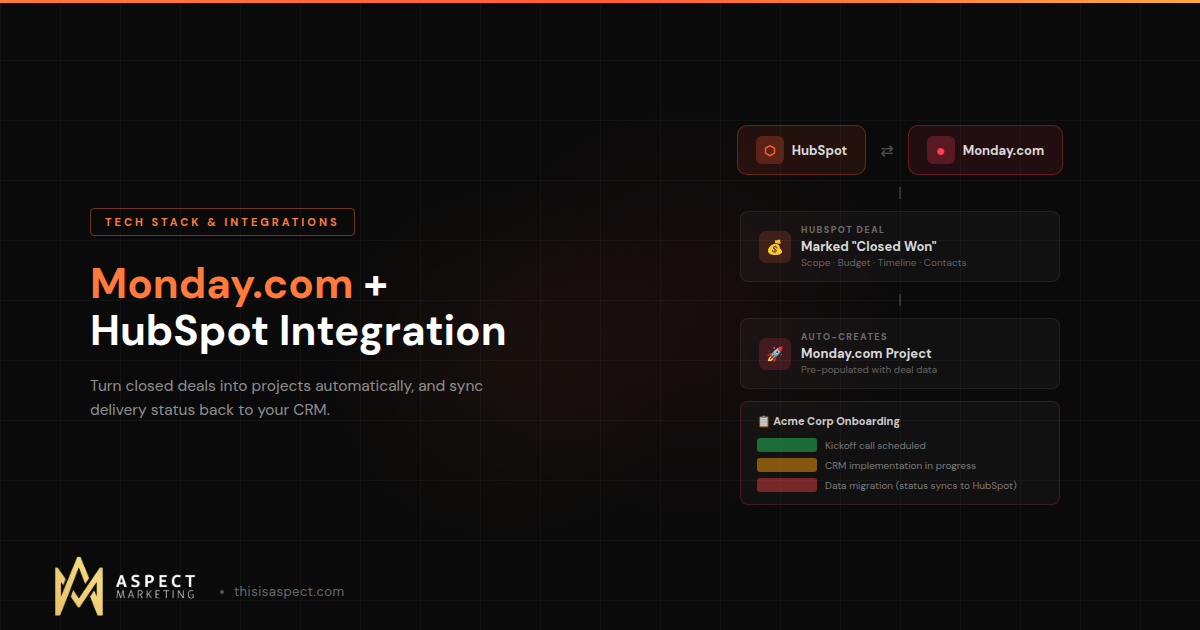
Configure the integration so that when a deal is marked “Closed Won” in HubSpot, it automatically creates a new item on a specific Monday.com board, pre-populated with the deal data. The deal name becomes the project name. The company and contact details flow into the relevant columns. Key deal properties (scope, budget, timeline, special requirements) populate the project fields.
The result: the moment a sale closes, your delivery team has a fully-formed project board with all the context they need to start work. No manual project creation. No “let me dig up the details from the sales rep.” No information lost in the handoff. The salesperson who closed the deal has effectively briefed the delivery team automatically, just by marking the deal won.
This one automation alone justifies the integration for most project-based B2B businesses.
Closing the Loop: Status Updates Back to HubSpot
The integration becomes even more powerful when you sync data in both directions.
By syncing project status updates and key milestones from Monday.com back to HubSpot, your sales, service, and account management teams get a direct line of sight into project progress without ever leaving the CRM. When your delivery team marks a project “In Progress” or hits a milestone in Monday.com, that status can update the relevant record in HubSpot automatically.
This unlocks a few valuable workflows. Account managers can see real-time project status before a client call, so they’re never caught off guard. You can use HubSpot workflows to trigger automated client updates when a project’s status changes, keeping customers informed without manual effort. And your commercial teams can have more informed conversations, anticipate roadblocks, and spot upsell or renewal opportunities based on how delivery is going.
This is the difference between a one-way data dump and a genuinely connected system. Information flows both ways, and every team works from the same truth.
A Word of Caution on Sync Settings
When you configure the integration, you’ll make decisions about what happens when records are created, updated, or deleted. Pay special attention to deletion settings.
Some sync configurations let you delete an item in one app when it’s deleted in the other. Be very careful here. You do not want to accidentally delete a live project board just because someone cleaned up a deal in HubSpot. For most teams, it’s safest to disable deletion sync entirely and handle removals manually.
Also watch for the common sync pitfalls: mismatched column names (the sync needs exact matches, so “Deal Value” and “deal value” won’t connect), duplicate entries from running multiple overlapping sync rules, and missing data from fields that weren’t populated before syncing started. Test with a few records before turning the integration loose on your whole pipeline.
Where This Fits in Your Broader Stack
The Monday.com + HubSpot connection is one piece of a connected GTM tech stack. On its own, it solves the sales-to-delivery handoff. But its real value shows up when it’s part of a fully integrated system where your CRM is the hub and every tool feeds clean data in and out of it.
When your calling platform, your support desk, your project management tool, and your CRM all share data, you get something most B2B companies never achieve: a single, accurate view of the customer across their entire lifecycle, from first touch through delivery and renewal. That’s the RevOps vision in practice, and the Monday.com integration is a concrete step toward it.
And as with every integration, it only works if the data flowing through it is clean. Inconsistent deal properties, missing fields, and duplicate records will undermine even a perfectly configured sync. The integration amplifies whatever data quality you start with, which is exactly why clean data is the prerequisite to getting value from any connected system.
Getting It Right
Connecting Monday.com to HubSpot isn’t technically difficult. The native integration can be set up in an afternoon. What takes thought is designing it to match how your teams actually work: which fields map where, what triggers a project kickoff, which status updates flow back, and how to structure your boards so the synced data is actually useful.
Done well, it eliminates one of the most common sources of friction in a B2B business and gives every team a shared view of the customer from sale to delivery.
If you’re running both tools but haven’t connected them, or you’ve set up a basic sync that isn’t quite working the way you need, we can help. As a Monday.com and HubSpot partner, designing these integration architectures is part of what we do for B2B teams every day.
Kevin Kyser is the founder of Aspect Marketing, a HubSpot Partner agency specializing in RevOps, GTM strategy, and AI-powered automation for B2B teams.